Features
Your computers and your phone, right in front of you.
Built as a tool for development and everyday work. Use your familiar screens from the couch, or even lying down.
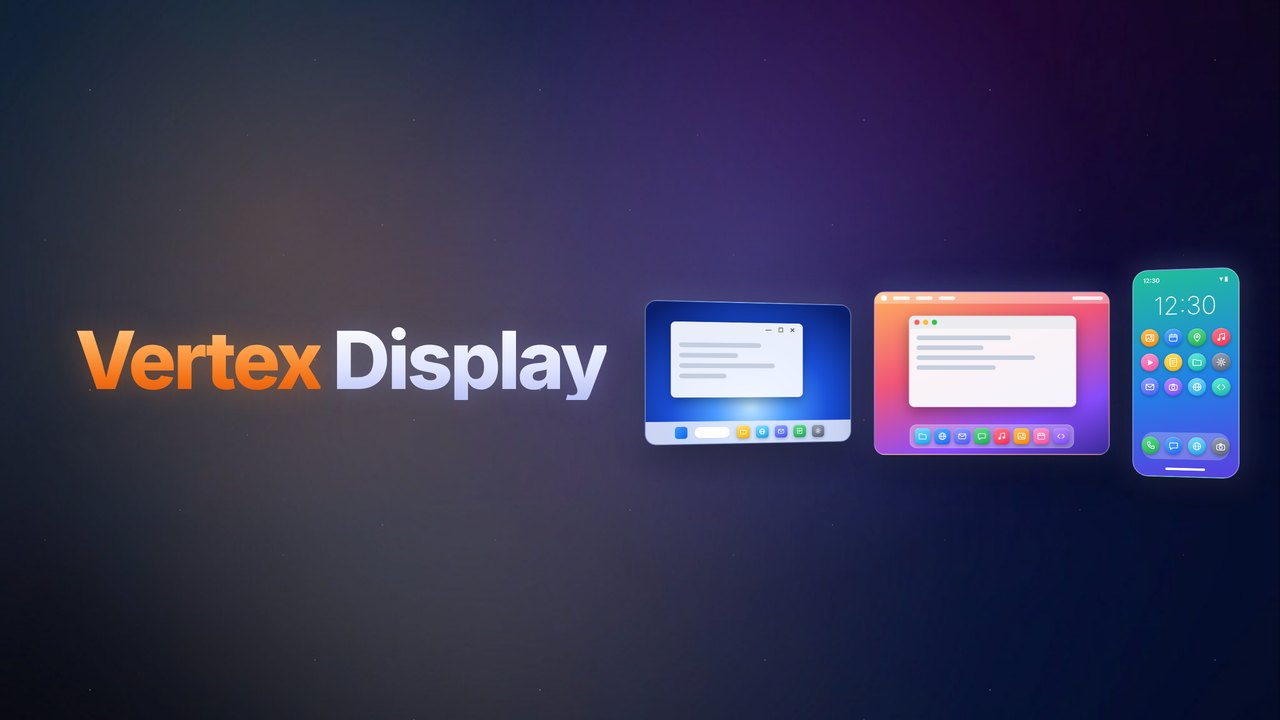
Up to 6 screens at once
Mix and match Mac, Windows and phone screens. On a Mac, add virtual monitors for even more room. Your open screens and their positions are restored next time.
Low latency
Video streams over UDP with forward error correction (FEC) to recover lost data. Hardware encoding and decoding at up to 90 fps. A wired connection on the host makes it even more stable.
Control your phone from Quest
See the screen of an Android phone running Vertex Host and control it with taps, swipes, text input and Back/Home. Check the app you're building on a real device as you work.
Audio comes along
Sound playing on the host plays in Quest. With several devices open, audio switches automatically to whichever device's screen you touched last.
Shared clipboard with history
Copy text on your Mac and paste it on your phone, or from your phone to Windows. Pick anything from your copy history and paste it right away.
Blind mode (Mac)
While you're connected, the Mac's screen is covered with a black curtain so people nearby can't see it. In Quest, it looks just as usual.
Encryption and PIN
Connecting requires the PIN shown on the host. Traffic is encrypted and travels directly between devices on your local network. No account needed.
iPhone too, via your Mac
With macOS iPhone Mirroring, your iPhone shows up in Quest right along with your Mac's screen.
Automatic reconnect
If Wi-Fi hiccups and your input stops getting through, it reconnects on its own.
How it works
Up and running in 3 steps
Install the host
On the device whose screen you want to share, install and launch the host app (Mac or Windows) or Vertex Host (Android).
Pick it in Quest
Open Vertex Display on Quest and hosts on the same network appear in a list. Select one and enter the PIN shown on the host. That's it.
Arrange your screens
Add more screens and devices and place them as windows anywhere in Quest. Next time, the screens you had open come right back.
Download
Apps
There's an app for viewing (Meta Quest) and an app for the device that sends its screen (the host). The host apps are free.
Meta Quest — Vertex Display
The app you view and control from. Available now on the Meta Horizon Store.
View on Meta Horizon Store
 Android — Vertex Host
The app that sends your phone's screen. Currently in testing on Google Play.
In testing
Windows — Vertex Host
Windows 10 / 11 (64-bit). Runs in the taskbar, ready for connections.
Download page
Requirements
Requirements & notes
Requirements
- Meta Quest 3 / 3S (up to 6 screens). Quest Pro supports up to 4, Quest 2 up to 2
- Mac — macOS 13 or later. Apple silicon recommended (Intel: up to 2 screens)
- Windows — Windows 10 / 11 (64-bit). Fast hardware encoding on NVIDIA, AMD and Intel GPUs
- Android — Android 8 or later (audio requires Android 10 or later)
- All devices must be on the same network (same Wi-Fi or LAN)
For the best experience
- 5 GHz or faster Wi-Fi is recommended. Connecting your Mac or Windows PC by Ethernet all but eliminates stutter
- Long sessions drain the battery on Quest and phones, so we recommend keeping them charging
- Copy-protected video apps (such as Netflix) may not send video or audio
- Call audio (phone calls and voice calls in messaging apps) can't be sent due to Android limitations
- Blind mode (hiding the screen) isn't available on phones due to Android limitations. Use "Dim screen while connected" instead