Screens
Features
Send it, and watch it on the TV.
What regular casting can't do, built for Quad-A apps.
From iPhone and Android
Every receiver accepts casts from both iPhone and Android.
MKV and multiple audio tracks
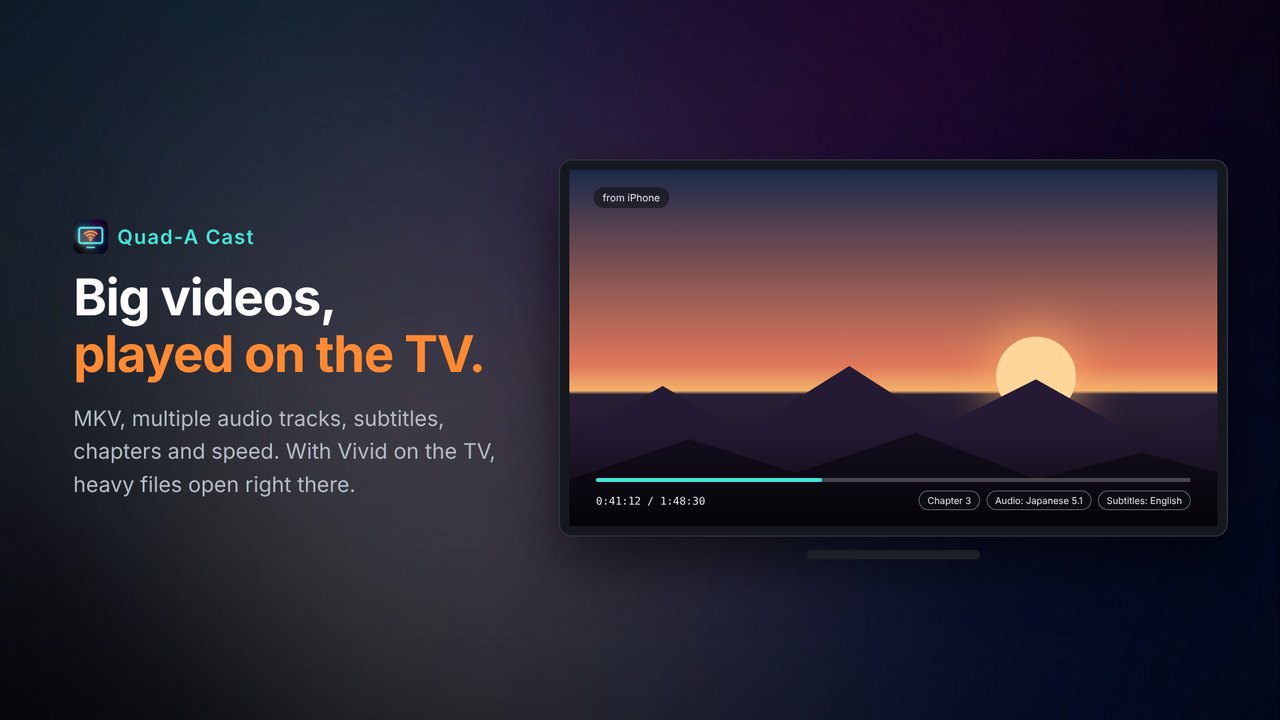
MKV, multiple audio tracks, subtitles (including external ones), chapters and speed. Videos your phone can't cast elsewhere play on the TV.
Heavy files open in Vivid on the TV
With Vivid on the TV, Blu-ray folders, ISO and other heavy files are handed to Vivid on the TV for smooth playback and seeking.
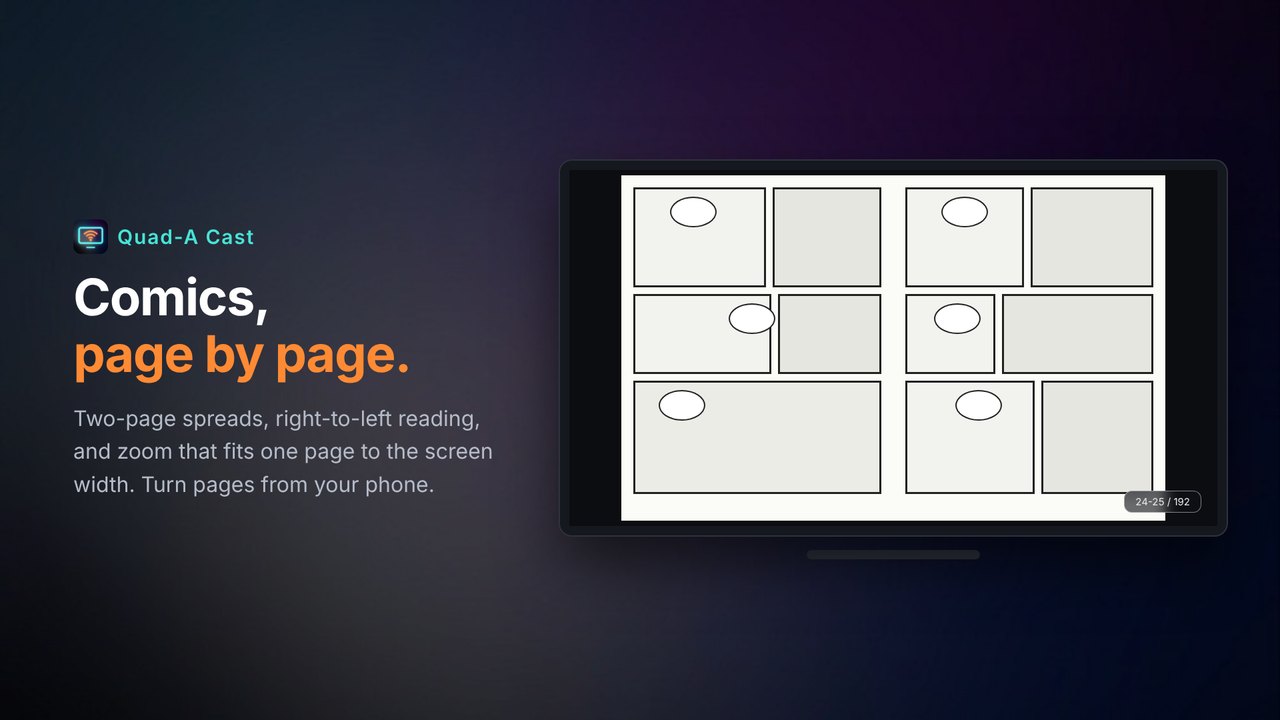
Comics in spreads
Single pages or two-page spreads, left-to-right or right-to-left. Continue on the TV right where you were in Versa.
Zoom to read
Fit one page to the screen width, scroll smoothly by swiping on your phone, and keep reading into the next page while zoomed.
Your phone is the remote
Play, pause, seek, volume and page turns, all from your phone.
Private, at home
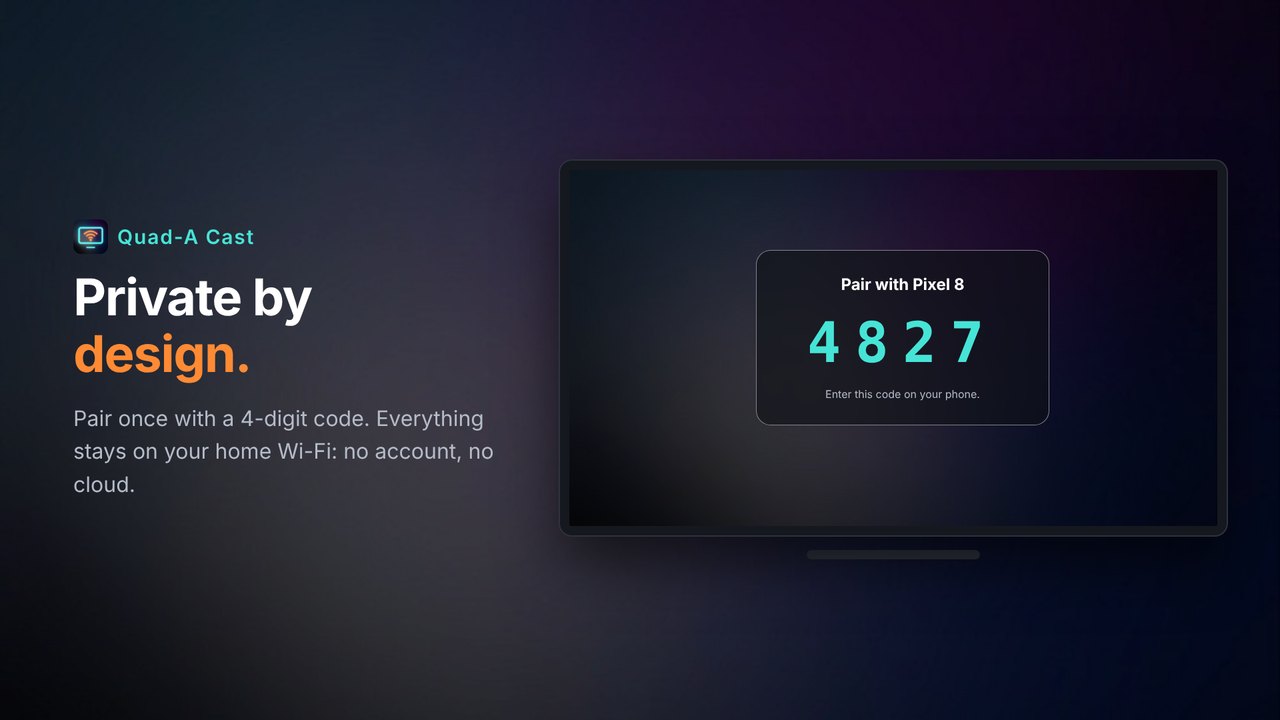
Pair once with a 4-digit code. Everything stays on your home Wi-Fi: no account, no cloud, no ads. Your NAS passwords never go to the TV.
Ready when the TV is
Starts with the TV and comes to the front when you cast (can be turned off).
How it works
Three steps
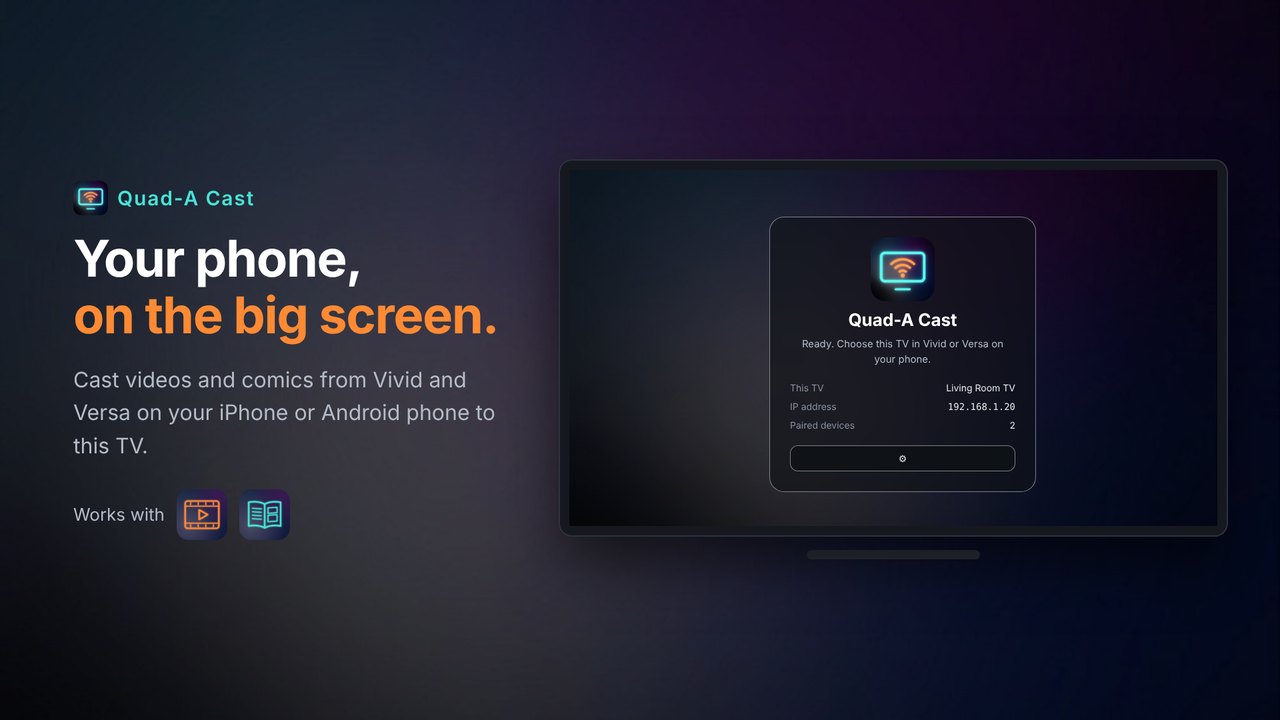
Install on the TV
Install Quad-A Cast on your TV and open it once. Keep the TV on the same Wi-Fi as your phone.
Pick the TV
Tap the cast button in Vivid or Versa and choose your TV.
Enter the code once
Enter the 4-digit code shown on the TV. You won't need it again.
Requirements
Requirements
Requirements
- Android TV / Google TV … Android 7.1 or later. Coming to Google Play
- Fire TV … Coming to the Amazon Appstore
- Apple TV … Coming soon
- Senders … Vivid or Versa (latest) on iPhone or Android
- Network … Phone and TV on the same Wi-Fi / LAN
Tips
- On guest Wi-Fi or networks that block device-to-device traffic (AP isolation), the TV may not be found
- To open automatically when you cast, allow "Display over other apps" for Quad-A Cast in the TV settings (Android TV / Fire TV)
- For heavy videos, we recommend installing Vivid on the TV as well